
Windows 11 VM
Windows VMs are now available through Open On Demand for CHPC users to run Windows applications on a cluster node. We encourage you to use Linux alternatives where possible as that will run smoother with our clusters but we recognize there are situations where you may want to use a Windows application with your data on CHPC and with the power of a cluster node. You can access your home, group and scratch directories inside the VM but there are a couple of important considerations to note while using this:
- Storage on the VM is NOT persistent. This means you will need to save your work on your CHPC mapped drive (e.g. Z:) and NOT on the machine's local drive (C:). The VM starts from a reset state every time so will have no memory of your previous sessions and this extends to your data files.
- Due to security restrictions, internet access and administrator access with this VM is not available. If you would like to see a particular program installed, please contact CHPC at helpdesk@chpc.utah.edu.
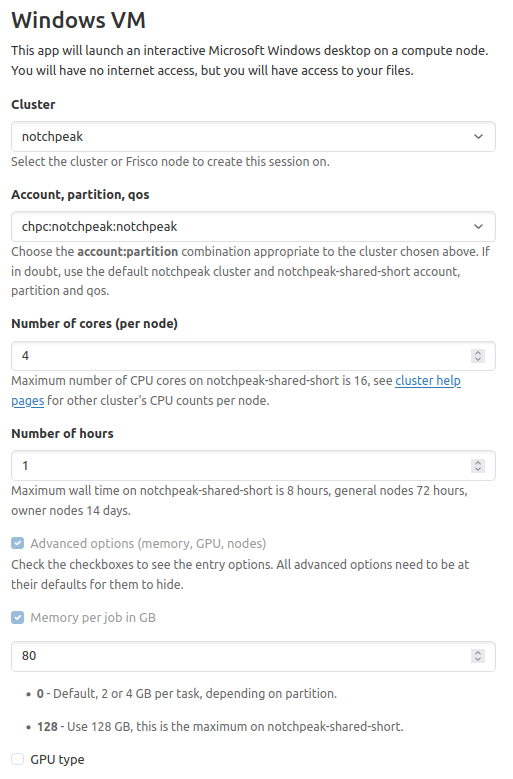
Suggested Parameters
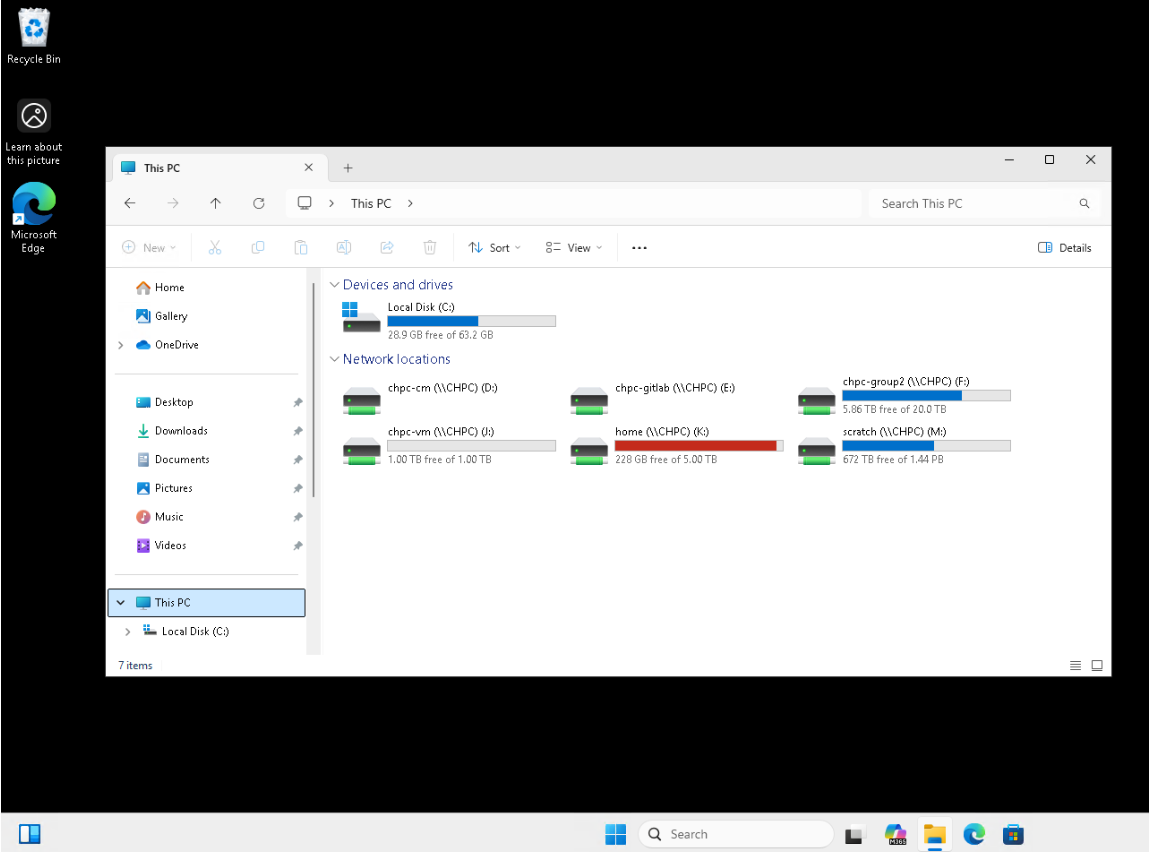
We recommend starting a Windows VM with at least 4 cores and 32 GB of memory, which you can select as shown on the screen. Please note that 16GB of this request will be reserved for VM overhead so if you want a Windows VM with 32GB RAM, request 48 for memory. Then launch the job. Once your job status changes to "Starting," be aware that it will take around two minutes for the VM to start up. You will see a Web button under Connect with: when the VM is ready to start. Initial login will take 15-30 seconds and after another 30 seconds, users should see a script start that maps the user's CHPC drives to Windows equivalents. These will vary by user so we suggest the user check drives carefully but drives like Home and Scratch will be clearly labeled. You will not be able to access your drives until the script has completed. Then if you go to File Explorer and "This PC", you should see a screen like the following:
Benefits of this over Beehive/Narwhal
Beehive and Narwhal are a single machine whose resources are shared by all users at the same time. This can cause problems for many applications that use a lot of memory or CPU which makes the experience worse for all other users. Using a Windows VM in this way gives you dedicated resources for your work just like using Slurm to run a job does.
No Network Connectivity
As mentioned above, this VM will have no network connectivity, not even to other cluster
nodes. Anything you do that requires network connectivity (dataset download or things
of that nature) will need to be done with a Linux interactive desktop or command line
and then can be used in Windows through mapped drive access. Users can install any
software they previously downloaded on this VM but it will be gone at the end of the
session. Any software requiring Administrator access will not be user-installable.
If you have software you would like to see installed on this Windows VM for permanent
use, please contact us at helpdesk@chpc.utah.edu.
Currently installed software
Currently Microsoft Office is the only software installed on this VM. Users are free to use it and the opening of large files in Excel has been a request from users. As mentioned above, we are actively soliciting feedback about this new approach to using Windows in HPC and please let us know if you have any other software you would like to see available on this VM.
Help:
If you need help with this system, please send email to helpdesk@chpc.utah.edu.